Every radiator at once, to its minimum or maximum with one tap.
What’s new
All radiators together. In Home devices the “Radiators” card sets them all to their minimum or maximum with a single tap, in parallel. If any of them has “Ask before switching”, there is one question for all. If one does not answer, you are told which.
On a radiator's page, “Min” and “Max” set it to either end at once, without scrolling the ruler.
When you ask Wollie to “turn off all the radiators”, the command goes to all of them at the same time instead of one after another, with one confirmation for those that ask first (needs box 0.7.8).
What to test
In Home devices tap “All to max”, then “All to min”.
Open a radiator and try “Min” and “Max”.
Ask Wollie to turn off all the radiators and see how long it takes.
The box
The “Radiators” card and Wollie's parallel command need box 0.7.8: install it from the app. It also brings sites with an incomplete certificate (like the Mendel's), feed search by words and dates, search in project categories, more readable project lists, and a file you ask Wollie for arrives in the chat you asked in. It includes 0.7.7.
No new SD-card image is needed. For a new box, start with image 0.7.0, then install updates from the app.
Radiators with a ruler, devices shown at once, your apps beside the chat, and reminders that get through a Focus.
What’s new
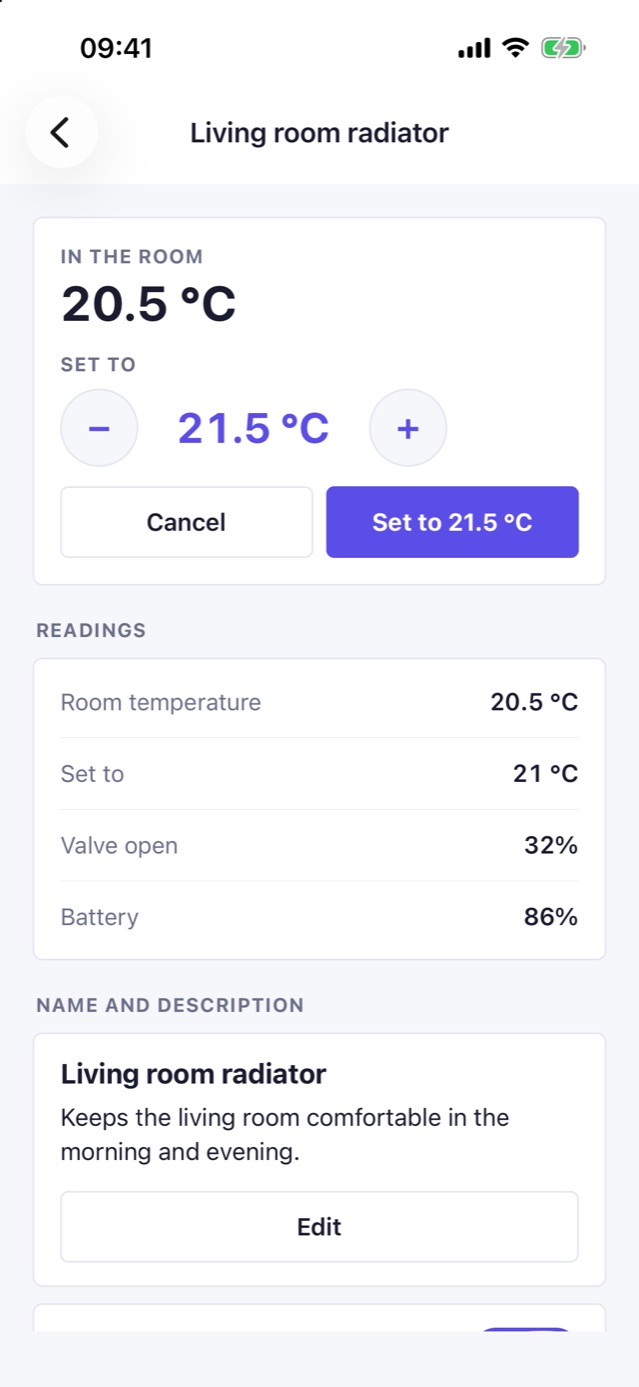
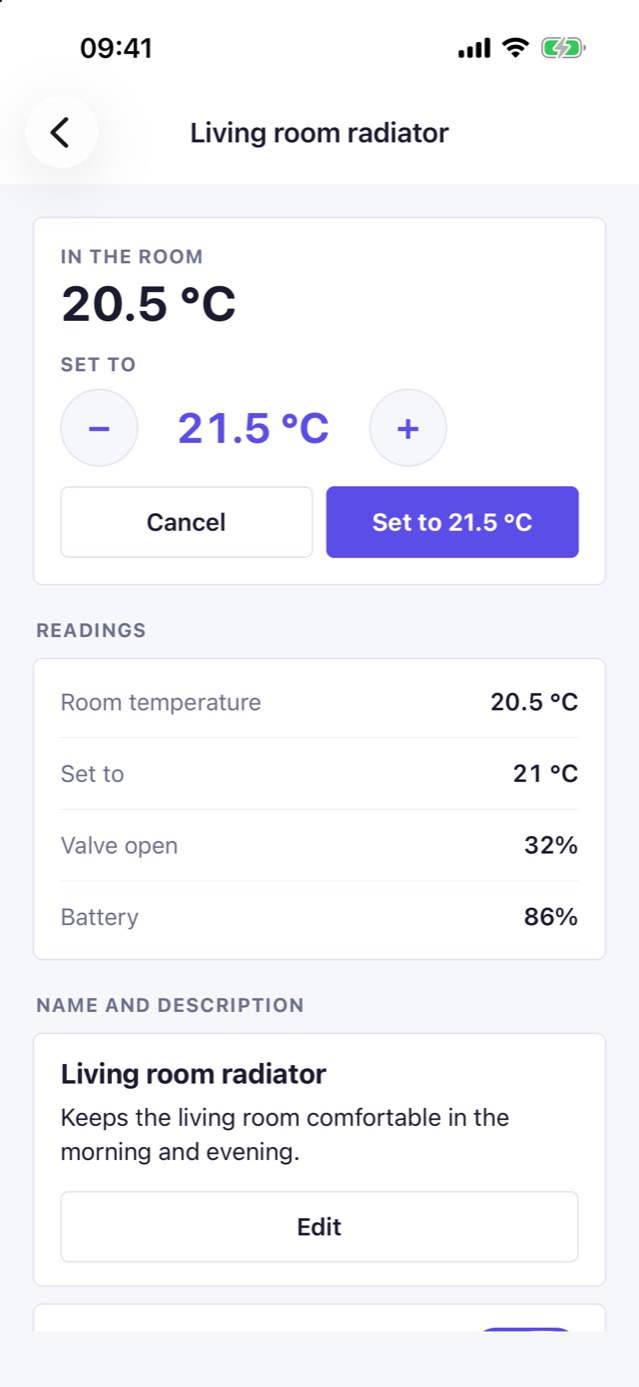
Radiators. Choose the temperature by scrolling a ruler in half-degree steps, with − and + at its ends for the last touch. Nothing is sent until you tap “Set to…”.
Devices. The list and a device's page show the last values at once, even after reopening the app; a small spinner at the top says they are being updated.
Apps beside the chat. In Me → Tabs, “Beside the chat” puts up to five apps to the left of the main chat (Home devices first, then the Portfolio, for example). Swipe right from the chat to reach them.
Time Sensitive reminders. They show on the lock screen even during a Focus or the Scheduled Summary.
On a phone without a box: subcategories in projects and search in sites' feeds.
What to test
Open a radiator, scroll the ruler, then “Set to…” or Cancel.
Put Home devices beside the chat in Me → Tabs and swipe right from the chat.
Set a reminder a few minutes ahead with a Focus on.
The box
Install box update 0.7.8 from the app: it reads sites with an incomplete certificate (like the Mendel's), searches feeds by words and dates, has search in project categories, more readable project lists, and a file you ask Wollie for arrives in the chat you asked in. It includes 0.7.7 (recurring events, subcategories, watching feeds).
No new SD-card image is needed. For a new box, start with image 0.7.0, then install updates from the app.
Wollie reads web pages itself: the text, the links to follow and the files to download.
What’s new
Reading the web. Give Wollie an address and it opens the page itself, reads its text and its links, and can follow them like a click. It no longer relies only on the search engine's summary, which often missed dates and numbers.
Files from the web. With box update 0.7.6, Wollie downloads a PDF or an attachment from a page (a school circular, for example), reads it, and can file it in a project with its category.
Feeds. When a site offers an RSS feed (many school sites do, for their circulars), Wollie reads its latest items in one go: the cheapest way to see what is new.
Safety. Only public sites are opened, never devices or pages of your home network; a scheduled job opens only the sites you allowed it.
On the phone without a box, Wollie reads pages too (secure https addresses), but cannot download files.
What to test
Ask. “leggi https://agrariomendel.edu.it/ e dimmi le ultime circolari”. Then ask it to open one and read its PDF.
Ask it to file that circular in a project, in a category.
On a phone without a box, ask it to read a news page by its address.
The box
Install box update 0.7.6 from the app for downloading files and for the box's own page reading. It also includes 0.7.5 (Sign in with Google).
No new SD-card image is needed. For a new box, start with image 0.7.0, then install updates from the app.
Sites with an incomplete certificate, searching a site's feed, and project pages that read better.
What's new
Sites that send their certificate without the one that signed it (a common mistake on small sites, a school's among them) now open as they do in a browser: the box fetches the missing link from the address the certificate names and still checks the whole chain against the trusted roots. That address is followed only to a public name, never to the home network.
Wollie reads a site's whole RSS or Atom feed, 50 items at a time, and can look in it for some words or keep only the items of some days. It only reads: nothing is downloaded or filed unless you ask.
A category's page in a project has its own search, over the category and its subcategories, each result saying where it sits.
Project lists give the name the whole row; where it sits, its date and its description go on one small line under it.
A file you ask Wollie for arrives in the chat you asked in, not always in the main one.
A watch on a feed whose job is paused waits instead of turning itself off.
Includes 0.7.7. Recurring events and editing, subcategories in projects, watching feeds.
Works with any app build. This is a signed software update installed from the app. No new SD-card image is needed. For a new box, start with image 0.7.0, then install updates from the app. Images older than 0.7.0 cannot update from the app.
Recurring events and real calendar editing, subcategories in projects, and a watch that follows a site's news without a model run per look.
What's new
Recurring events on iCloud and Google calendars: weekly on some days, every N weeks, monthly on a day or on the last Friday, yearly, until a date or a number of times. A repeating event is written on the household's clock, so it keeps its hour across summer and winter time. A first day that is not one of the repeat's days moves to the first one that is.
Changing an event in place (time, title, place, notes, alerts) for one occurrence or the whole series; a whole series changes its time of day, and its deleted and moved occurrences move with it. Deleting one occurrence, it and the following ones, or the series. Before, deleting one day of a series deleted all of it. Several alerts per event, and finding an event by its name.
Watching a feed or a page: every hour the box reads it with no model run and wakes the job the person wrote only when something new appears, handing it the new items. A new item stays waiting until a run of the job has had it, so a restart or Wollie switched off loses nothing. It reads only sites the person allowed for that job.
Subcategories in projects, up to three levels inside a project: “Agrario Mendel / Circolari” in Supplenze. A category page lists its subcategories, makes new ones and moves a category inside another; deleting one moves what it held up one level. Wollie names a category by its path when one name is in two places.
Includes 0.7.6. Wollie reads web pages and downloads files itself.
Works with any app build. This is a signed software update installed from the app. No new SD-card image is needed. For a new box, start with image 0.7.0, then install updates from the app. Images older than 0.7.0 cannot update from the app.
The back arrow at the top of a page works again on iOS 27.
What’s new
On iOS 27 the system back arrow at the top of a pushed page could stop responding (Home devices and other pages): the page still worked, but there was no way out without restarting the app. On iOS 26 and later the app now draws that arrow itself, in the same place and look; swiping from the left edge still goes back too.
What to test
Open Me, Home devices, then a device, and stay on it for a couple of minutes while its readings update. Tap the back arrow: it should go back every time.
Repeat on other pages with a back arrow (Calendars, Email accounts, a job, a project page).
Swipe from the left edge to go back on the same pages.
The box
No box update needed for this build. Box update 0.7.5 brings Sign in with Google (166).
Connect Gmail and Google Calendar by signing in with Google, work accounts included.
What’s new
Sign in with Google for mail: Me, Email accounts, “Sign in with Google”. It works for Google Workspace accounts, where the organisation does not allow app passwords. Your box keeps the sign-in; the phone never holds a Google token.
Sign in with Google for calendars: Me, Calendars. Wollie reads your Google calendars and creates or deletes events on them, with alarms, like on iCloud.
Signing in again with the same address reconnects the existing account. A Gmail that used an app password moves to Google sign-in and keeps its folders.
Google may say it has not verified Wollie: tap Advanced, then continue to Wollie. A Google Workspace admin may need to trust Wollie in the Admin console.
What to test
Me, Email accounts, Sign in with Google: pick a Gmail or a work account, allow, and check the account appears with a Google tag. Ask Wollie for your latest mail from it.
Me, Calendars, Sign in with Google: then ask Wollie what is on your calendar this week, and to add a test event with an alarm.
On the consent page, untick the mail box: the app should say access was not granted, and add nothing.
Ask Wollie to draft and send a test mail from the Google account: it should appear once in Sent.
The box
Install box update 0.7.5 from the app: the buttons appear only with it. Older boxes keep working with this build, without Google sign-in.
No new SD-card image is needed. For a new box, start with image 0.7.0, then install updates from the app.
Wollie opens again on iOS 27. Paste a photo or a file to attach it, divide a project into categories, and copy useful text right where it appears in the reply.
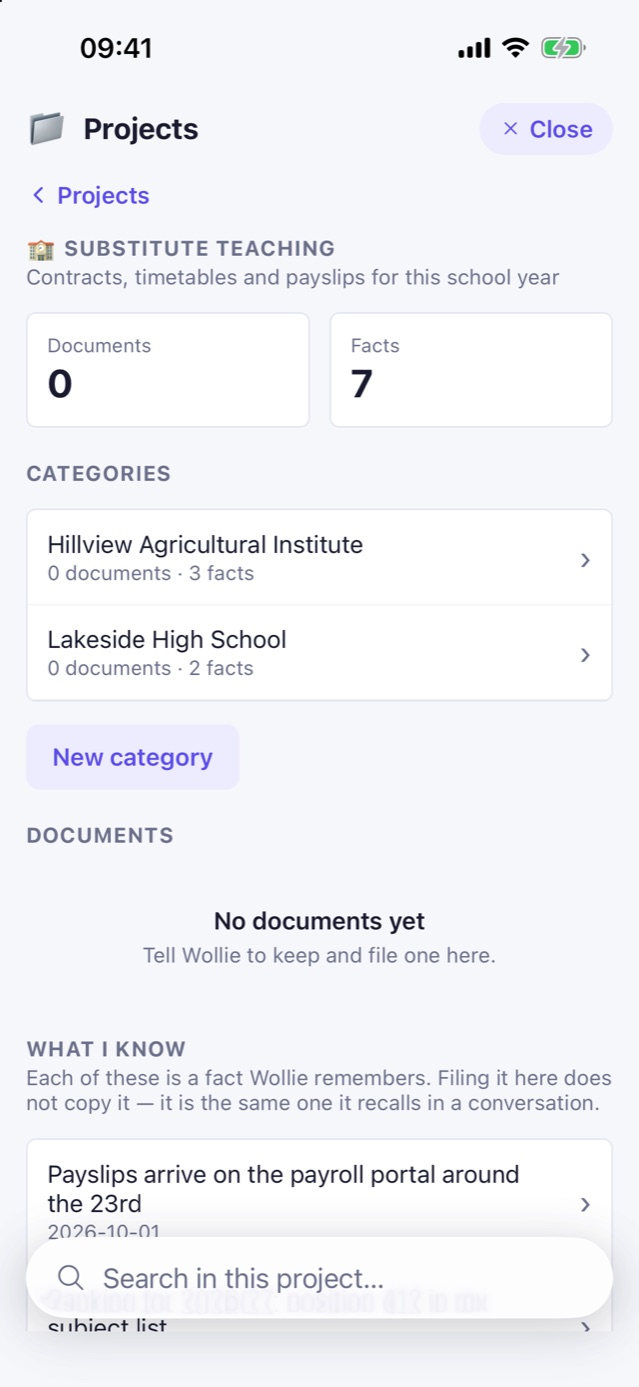
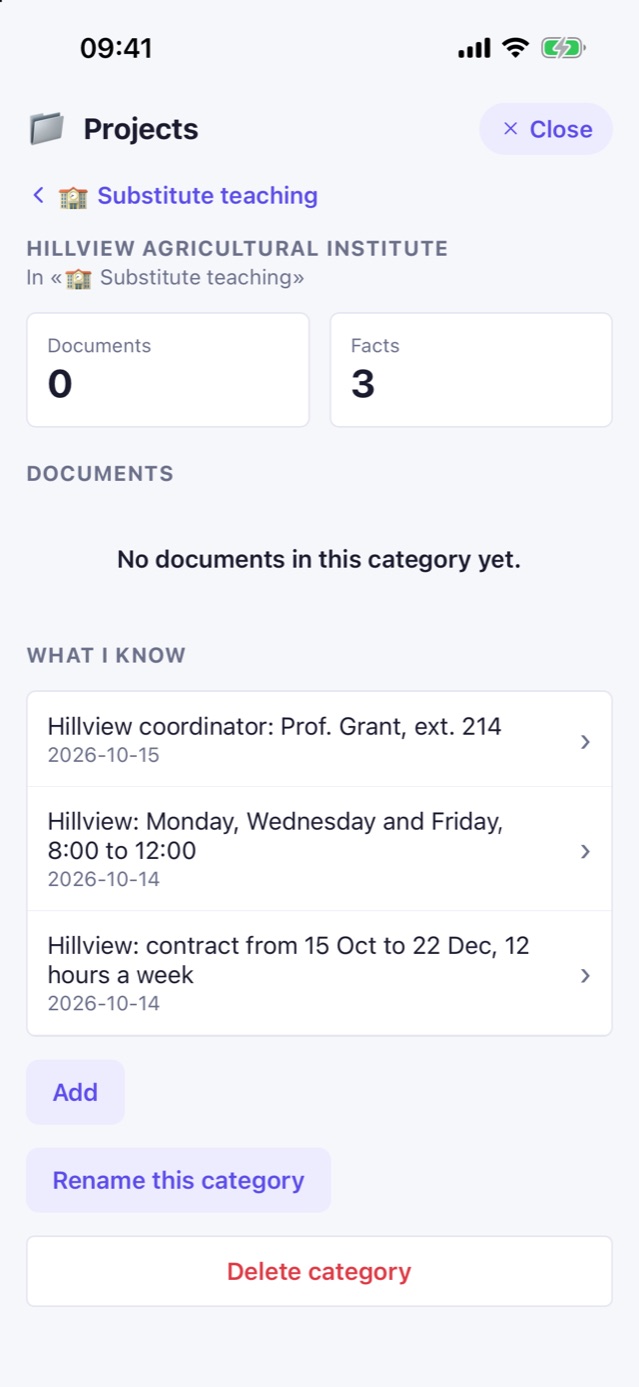
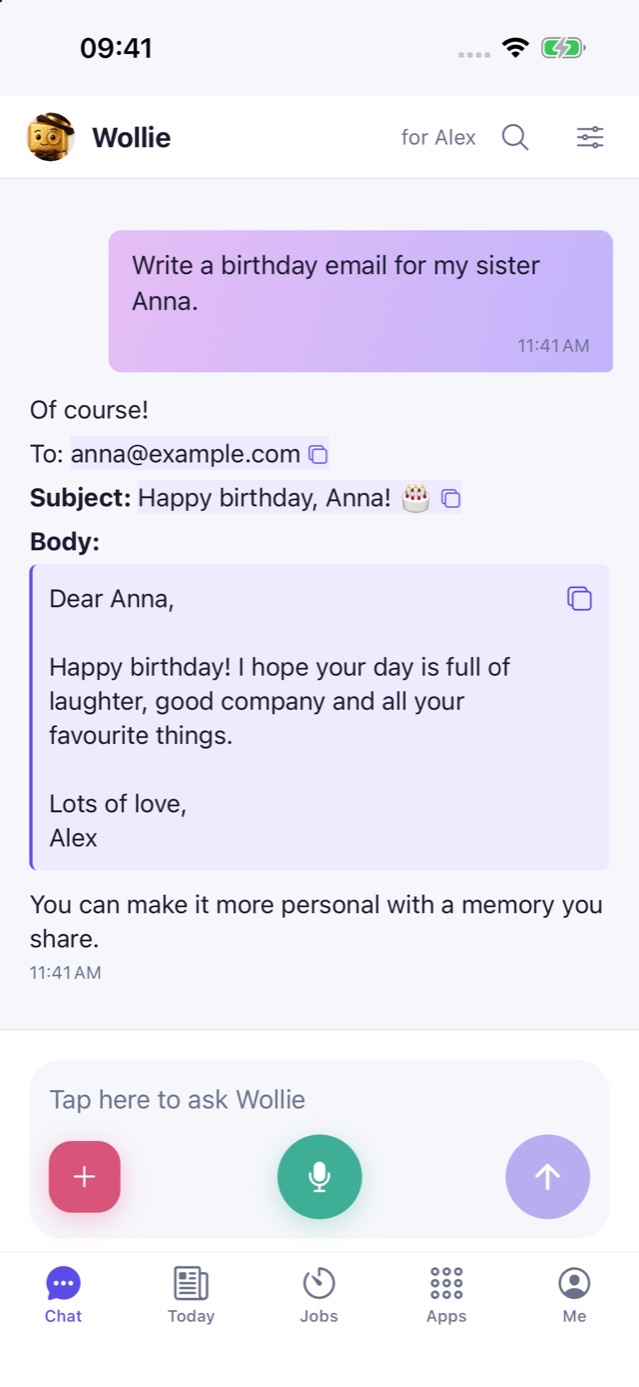
A project with two categories: each school keeps its own facts and documents.A category's own page, with rename and delete.Copy in place: recipient, subject and body of a draft, each with its own copy icon.
What’s new
iOS 27. Builds made with the new SDK stopped at launch on phones updated to iOS 27.0.1. The app now uses the window lifecycle iOS 27 requires. Links, files opened in Wollie and shared files still reach the app, also when it was closed.
Paste to attach. Copy a photo, a PDF or a file in another app, then Paste in the message field (or Cmd+V on the Mac and with a keyboard). It lands in the tray like a file picked with +. Text pastes as before.
Project categories. A project can have named parts, for example one per school in a “Substitute teaching” project. Facts and documents stay at the project level or go into a category; Wollie can create categories, file into them and move items. Needs box update 0.7.4; Solo has it in this build.
Copy in place (first public since 162): useful values and text Wollie marks are highlighted with a copy icon in the reply. An email draft offers recipient, subject and body separately.
What to test
On iOS 27, open the app cold and from a wollie:// link or a file shared from Mail or AirDrop while the app is closed.
Copy a photo in Photos, open a chat, long-press the message field and choose Paste. Try two photos, and a PDF from Files.
Ask Wollie to create a project with two categories and to file a fact in one of them. Open the project page, open a category, move an item with “Change category”.
Ask for an email draft and copy subject and body separately.
The box
Install box update 0.7.4 from the app for project categories. Older boxes keep working with this build, without categories.
No new SD-card image is needed. For a new box, start with image 0.7.0, then install updates from the app.
Gmail and Google Calendar connect by signing in with Google: work accounts included, no app password.
What's new
A mailbox can be connected with “Sign in with Google” from Me, Email accounts. It is the way for Google Workspace accounts, where the organisation does not allow app passwords. Mail is read and sent with Google's OAuth login (XOAUTH2); the box keeps the sign-in in its vault, and the phone never holds a Google token.
Google calendars connect the same way from Me, Calendars: Wollie reads, creates and deletes events on them like on iCloud, with alarms. Google Calendar has no reminder lists, so reminders stay in Wollie's own Reminders.
Signing in again with the same address replaces the sign-in on the existing account: that is the reconnect when Google asks for it, and the move of a Gmail that used an app password to Google sign-in, keeping its folders and history.
Google may say it has not verified Wollie: choose Advanced, then continue. A Google Workspace admin may need to trust Wollie in the Admin console.
Gmail already files what it sends in Sent, so the box no longer adds a second copy for Gmail accounts.
Use app build 166 or later for the “Sign in with Google” buttons. Accounts with app passwords keep working as before. This is a signed software update installed from the app. No new SD-card image is needed. For a new box, start with image 0.7.0, then install updates from the app. Images older than 0.7.0 cannot update from the app.
Projects can be divided into categories: one project, several named parts, each with its own facts and documents.
What's new
A project can hold categories of one level, for example a “Substitute teaching” project with one category per school. Facts and documents can stay at the project's own level or go into a category.
Wollie can create a category when you name a part of the project that does not exist yet, file a fact or a document straight into it (also when keeping a document from mail or chat), move items between categories and rename or delete one. Deleting a category moves what it held back to the project: nothing is lost.
The project page lists the categories first; each category has its own page, search covers every category, and each item can be moved with “Change category”. Only the project's owner renames or deletes a category; a participant with write access can create one and move their own items.
The box adds the new table and column by itself at the first start after the update. No manual step.
Categories work with every app build, because the project pages are drawn by the box. Use app build 165 or later for the rest of this release's news: the iOS 27 launch fix, paste to attach and copy in place. This is a signed software update installed from the app. No new SD-card image is needed. For a new box, start with image 0.7.0, then install updates from the app. Images older than 0.7.0 cannot update from the app.
See what needs your attention from any screen, with a badge on Me.
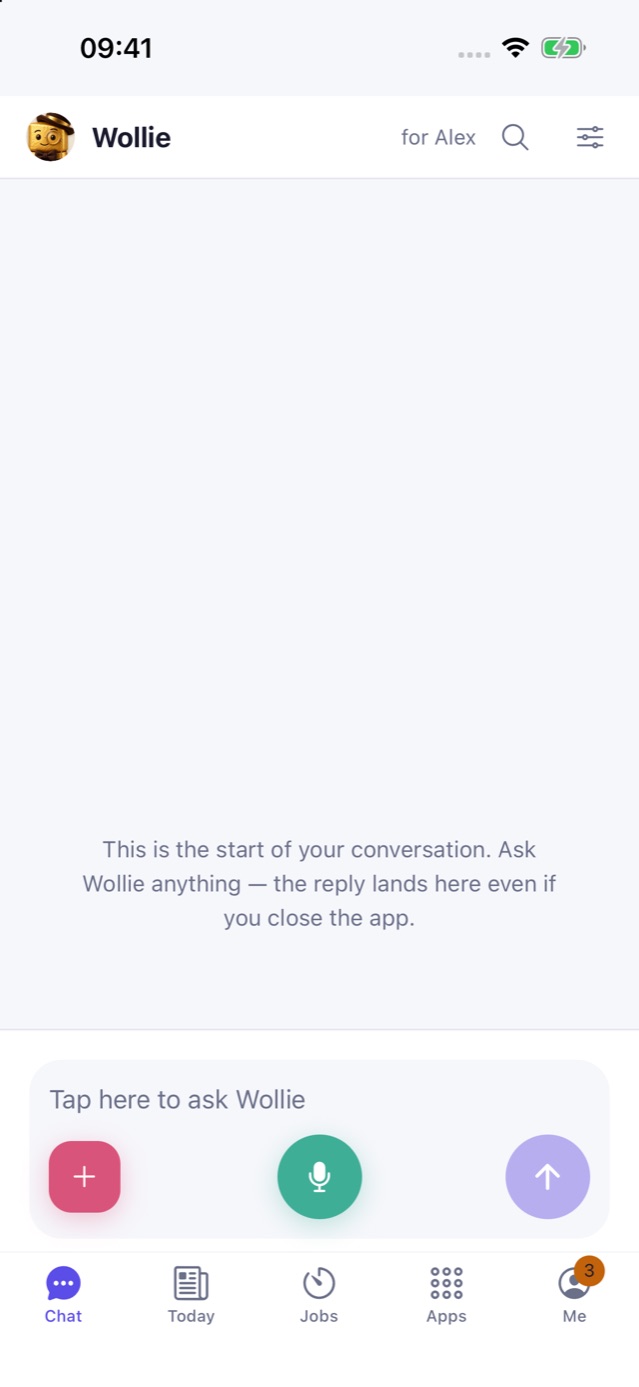
A badge on Me shows how many actions you can take, from any tab. Simulator screenshot with invented sample data.Opening Me keeps the badge. The update card and account counters show where to act; a selected brain needing attention has its own counter further down.Once the actions are resolved, the badge disappears. It also refreshes when you return after resolving something from another device.
What’s new
Me shows the number of actions you can take: an installable box update, your own email accounts that need reconnection, and selected chat or jobs brains that need setup or access.
Opening Me keeps the badge until the actions are resolved. Starting an update removes that action; if it fails and can be retried, it returns. An installed update removes it.
Reconnecting or removing an email account, signing in to a brain, or choosing a ready one refreshes the count. A brain used by both chat and jobs counts once.
The badge and Me cards use the same state. Checks run while the app is active, on return and after reconnection. Old replies cannot bring back resolved warnings or data from a previous pairing.
Temporary network failures, usage limits that reset themselves and unused brains do not create actions. Screen-reader labels explain the count in the app’s language.
What to test
With a box update available, stay in Chat: Me should show a badge. Open Me and return: the badge should remain until you start or complete the update.
Resolve an owned email account’s authentication problem, test it or remove it. Its count should disappear after the box confirms the new state.
Sign in to a selected brain or choose a ready one. Check that the count falls; an unused brain or a temporary usage limit should not add a badge.
Put the app in the background, resolve an action from another device and return. The badge should refresh. Unpair: no box badge should remain in Solo mode.
The box
This is an app update. No new box release or SD-card image is needed. It uses the settings APIs supported by your box; unsupported features are skipped.
For a new box, start with image 0.7.0, then install box updates from the app.
Share documents from other apps, manage Shelly gateways and identify temporary files before they expire.
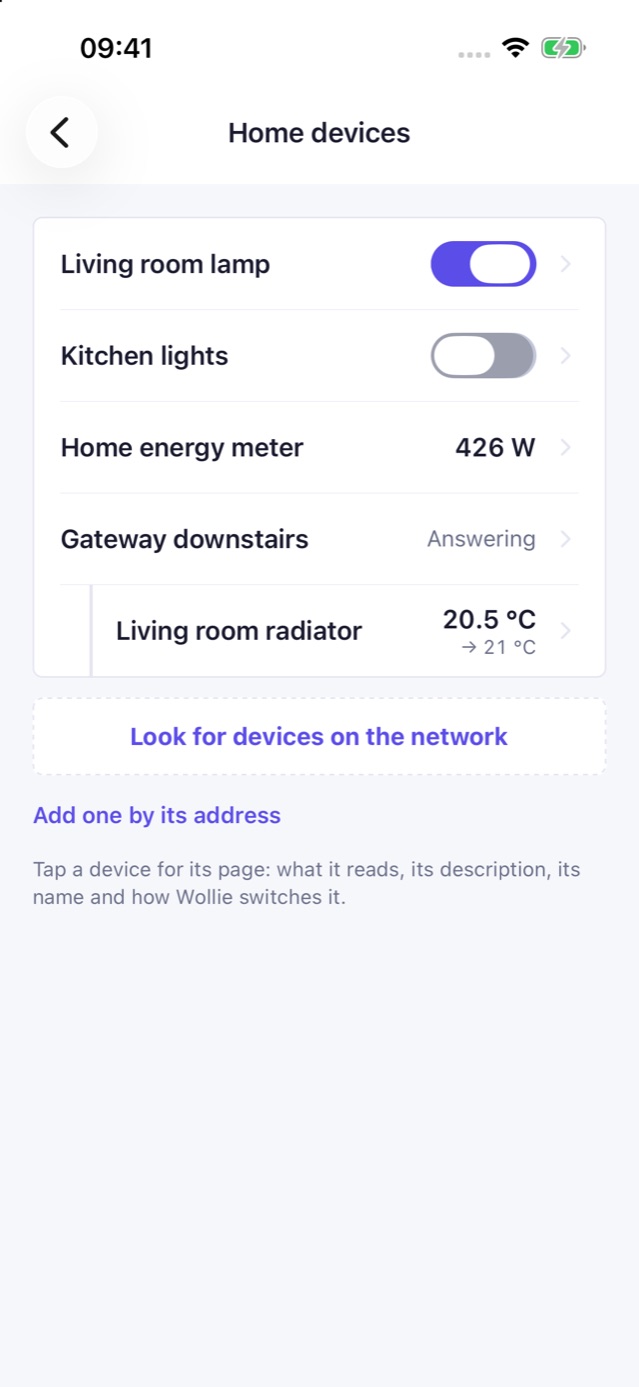
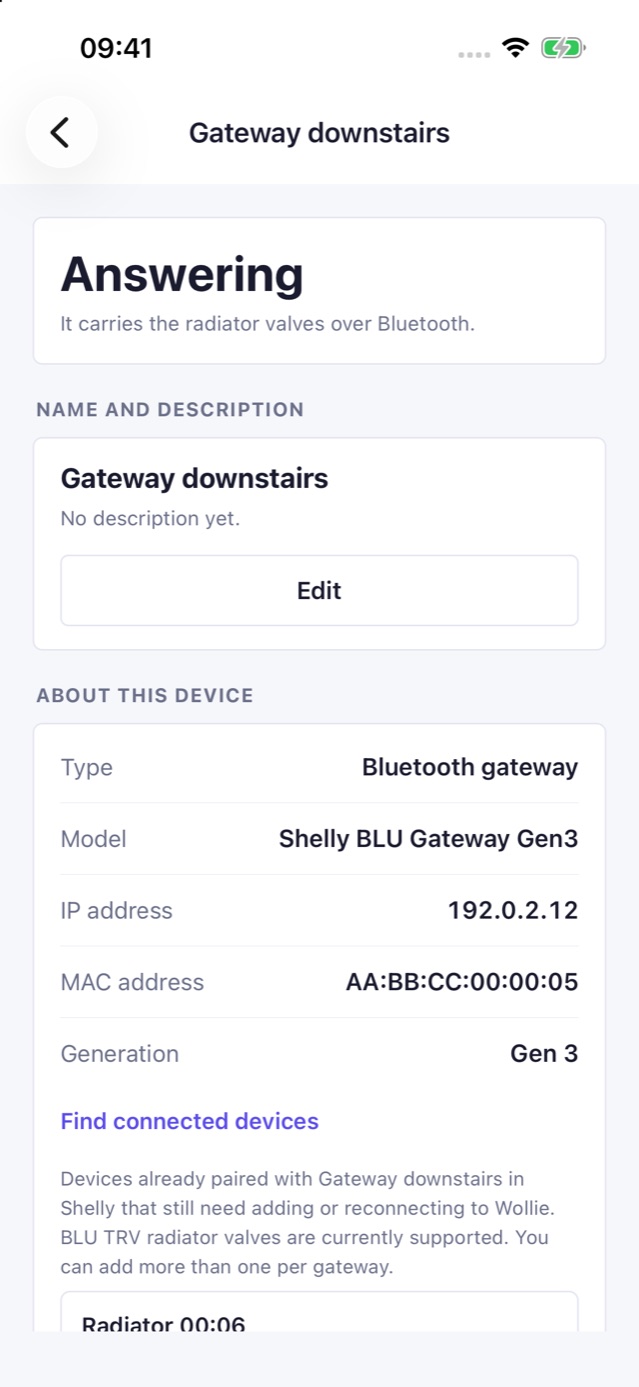
Devices grouped under their gateway; tap a device to see its readings and controls.Find connected devices from the gateway detail. Already registered valves are hidden; the current integration supports BLU TRV valves paired in Shelly.A planned deletion date, a recognizable description and a file preview you can open. Screenshot uses invented sample data.A shared document is ready in the message composer, with a single attachment.
What’s new
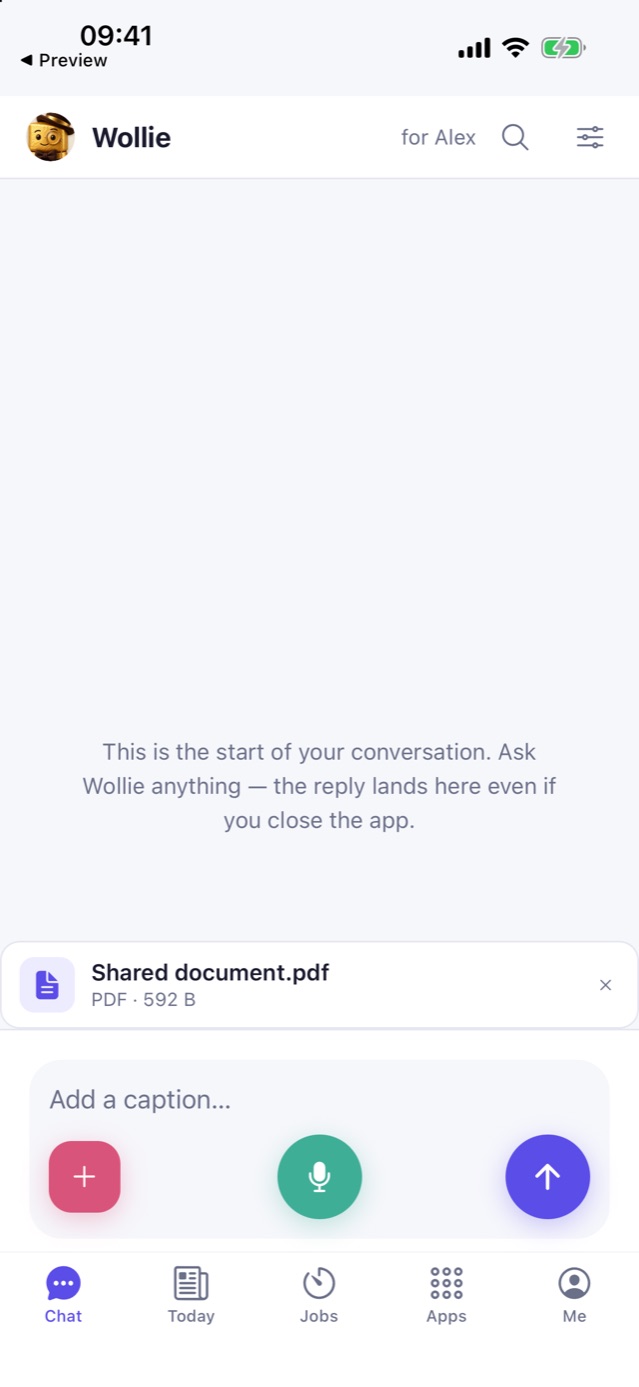
Documents shared from Mail, AirDrop and file previews reach the composer, including temporary files. Import failures show an explanation.
Attachment buttons adapt to screen width and text size, with readable labels.
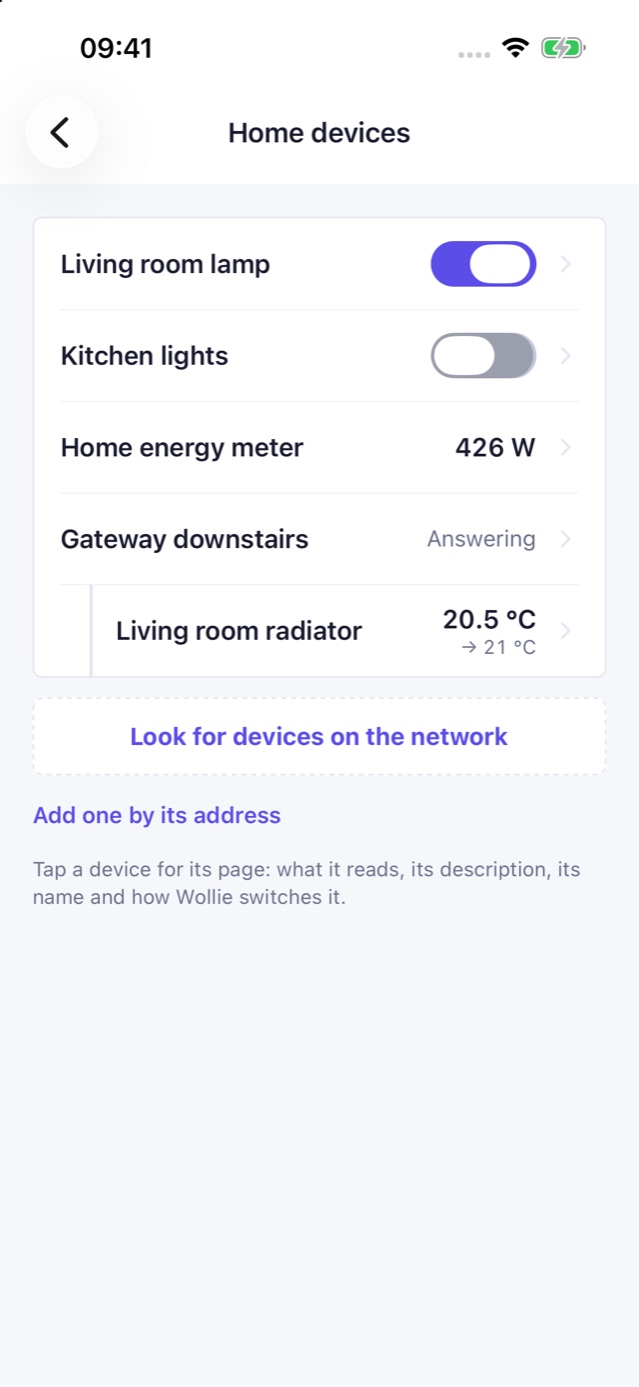
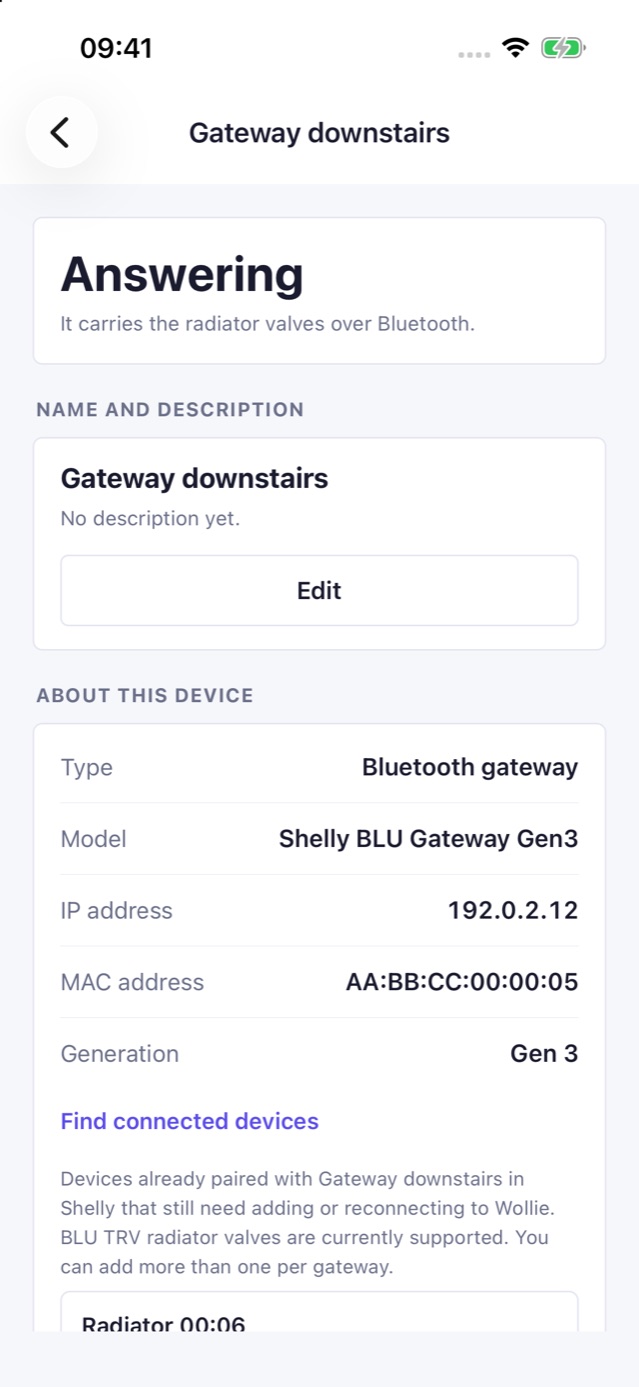
Home devices are grouped under their gateway. “Find connected devices” is available in the gateway detail, and hides devices already added. Devices that need reconnection remain visible. Currently supports BLU TRV valves paired in Shelly.
Reconnect a Shelly after an address change without losing its name or confirmation settings.
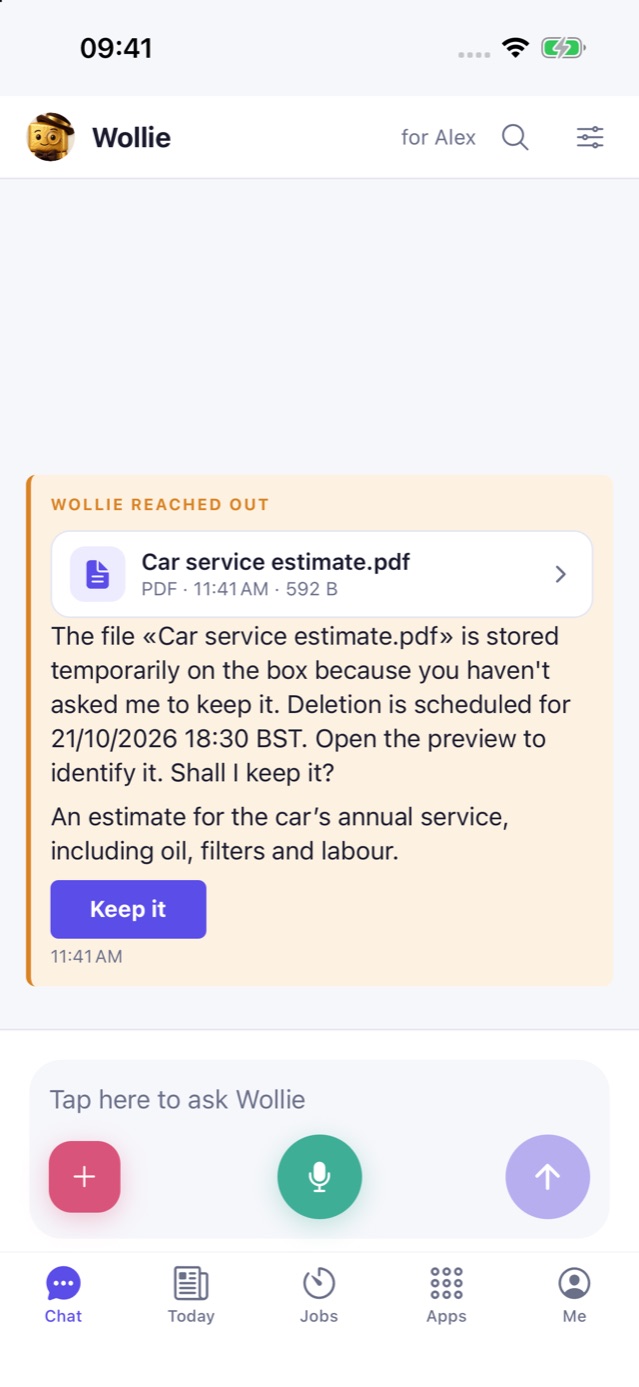
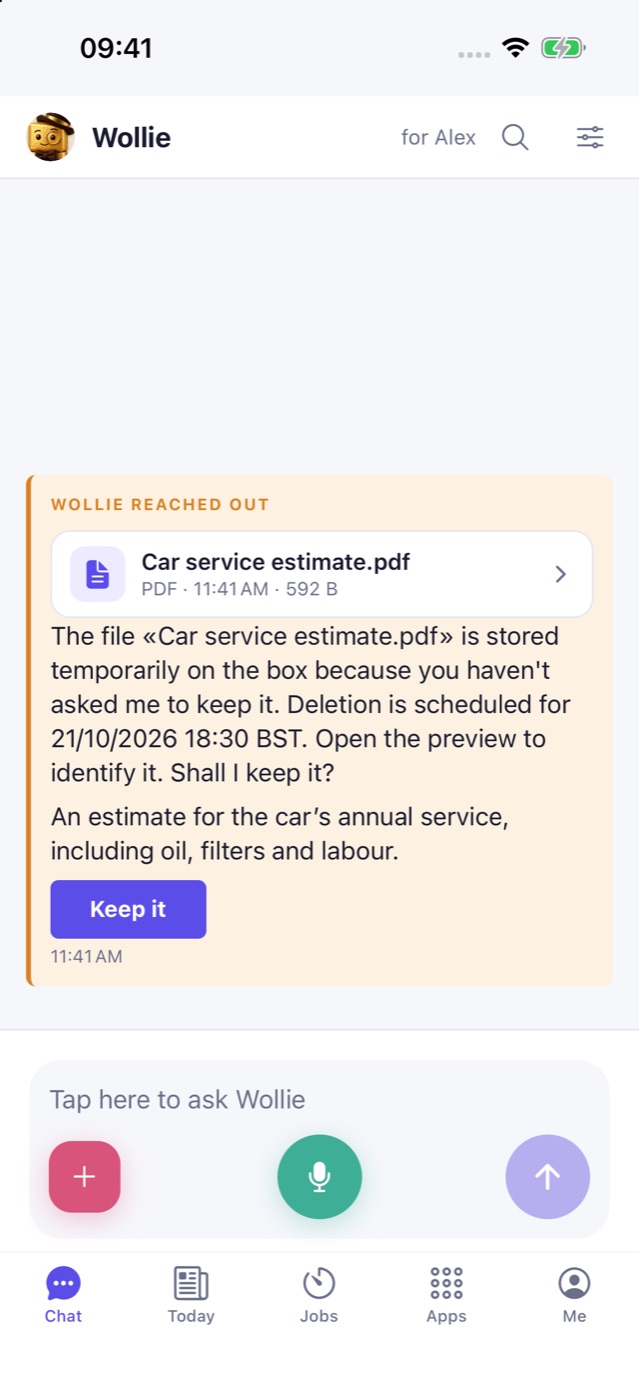
File-expiry messages show the planned deletion date and explain that you have not asked Wollie to keep the file. Open its preview and see the reader’s description when available. Old warnings also gain a file preview.
What to test
Share a PDF from Mail or an AirDrop preview with Wollie open, in the background and closed. Check that only one attachment is ready before sending.
Increase text size and open the attachment menu: Photo, Camera, Scan and File should stay readable.
In Me → Home devices, check that valves appear under the correct gateway. Open its detail, find connected devices and add one: it should disappear from discovery results. Repeat network discovery: registered devices at their current address should be hidden.
When a temporary-file warning arrives, open its preview, check the description and deadline, then tap Keep it. An already expired file should show a clear explanation.
The box
Gateway discovery and the new file-expiry messages need box update 0.7.2. Device grouping, document sharing and previews in old warnings are app changes.
For a new box, start with image 0.7.0, then update from the app. Images older than 0.7.0 cannot update from the app.
Wollie can choose the useful text to copy from your request, including a draft email's subject and body, directly where it belongs in the reply.
What's new
All box brains receive guidance to mark self-contained copy targets according to the user's intent, without a fixed list of field types. Short values use ordinary Markdown code spans; complete drafts use text blocks that keep paragraphs and signature.
An email draft can offer recipient, subject and body separately. Labels, explanations and final comments stay outside the copied text. The same approach works for messages, titles, search queries and other reusable text.
No new API field or database migration is required. Older apps continue to receive readable Markdown replies. This is an instruction to the AI: the targets it chooses depend on the reply it generates.
Use app build 163 or later for inline highlights, copy icons, tappable text and complete draft blocks. The app also recognizes common values in older replies without repeating chips at the bottom. Solo includes the new guidance in app build 163. This is a signed software update installed from the app. No new SD-card image is needed. For a new box, start with image 0.7.0, then install updates from the app. Images older than 0.7.0 cannot update from the app.
Recover Shelly gateways after an address change, add paired radiator valves, and recognize temporary chat files before they expire. Install this software update from the app without reflashing the SD card.
Devices grouped under their gateway; tap a device to see its readings and controls. Shown with app build 161.Find connected devices from the gateway detail. Already registered valves are hidden; the current integration supports BLU TRV valves paired in Shelly. Shown with app build 161.A planned deletion date, a recognizable description and a file preview you can open. Screenshot uses invented sample data. Shown with app build 161.
What's new
Network discovery recognizes a known Shelly by its hardware address and offers to reconnect it at its new address. Device names and confirmation settings are preserved. Already registered devices at their current address are hidden.
The gateway detail in the app offers Find connected devices. Currently, Wollie imports BLU TRV radiator valves already paired in Shelly, including multiple valves per gateway. Discovery shows devices still to add or reconnect, and hides registrations that are already complete.
Valves retain their gateway association and can be recovered after a gateway was removed and added again. Both gateway and valve identities are checked; a temperature command checks the valve identity before sending.
Shelly energy meters with BTHome components and a contactor relay, including Pro EM-50, are correctly identified as meters.
Temporary-file warnings explain that the file has not been requested for permanent storage, show a planned deletion date and time, and include an attachment you can open. A single-file reader's description is retained for future warnings when available. Existing files may have no saved description. Warnings respect the longer lifetime of files still protected by a recent analysis session.
Use app build 161 or later for grouped gateway devices, discovery in gateway details, and previews in older file warnings. Older apps keep working. Pair new valves with their gateway in Shelly first, then add them in Wollie. For a new box, start with image 0.7.0, then install this update from the app. Images older than 0.7.0 cannot update from the app.
Choose the brain for chat and jobs from the app, control home devices directly, and read scans with your ChatGPT subscription.
Choose separate brains for chat and scheduled jobs; check sign-in status and usage. Simulator screenshots with demo data.Switch lights from the list and see temperatures and energy readings at a glance.Set a radiator’s target temperature from its page, with room temperature, valve opening and battery readings.
What's new
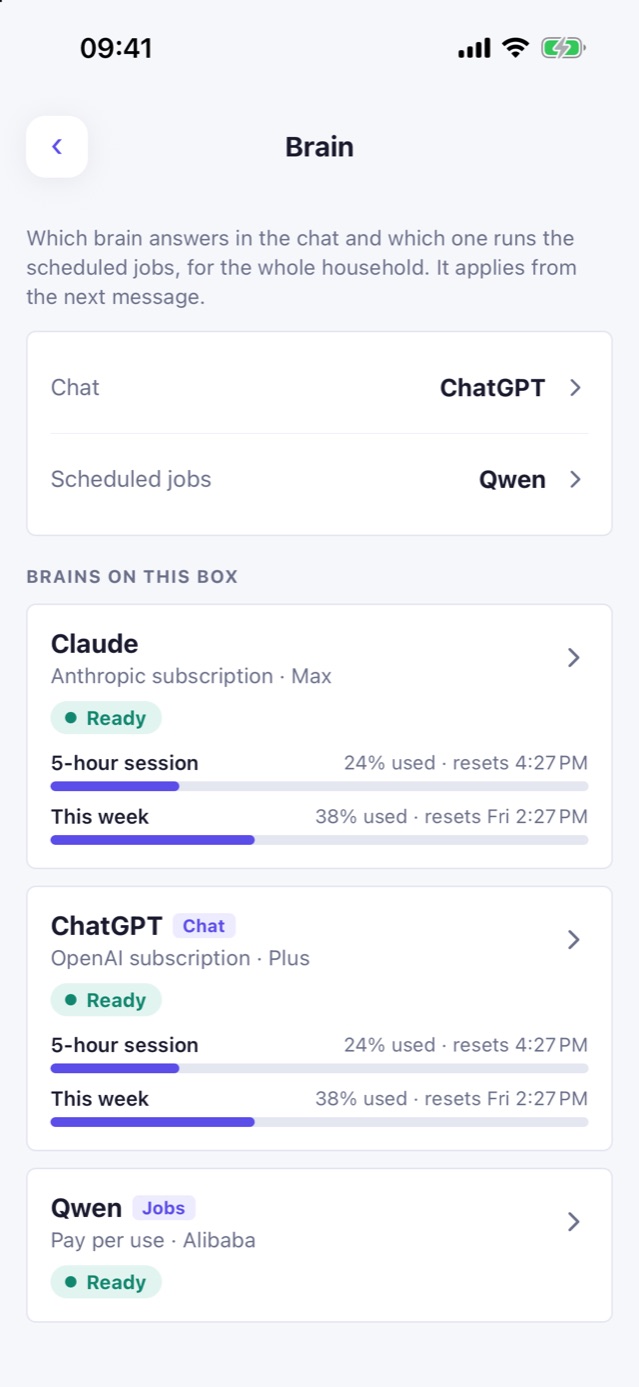
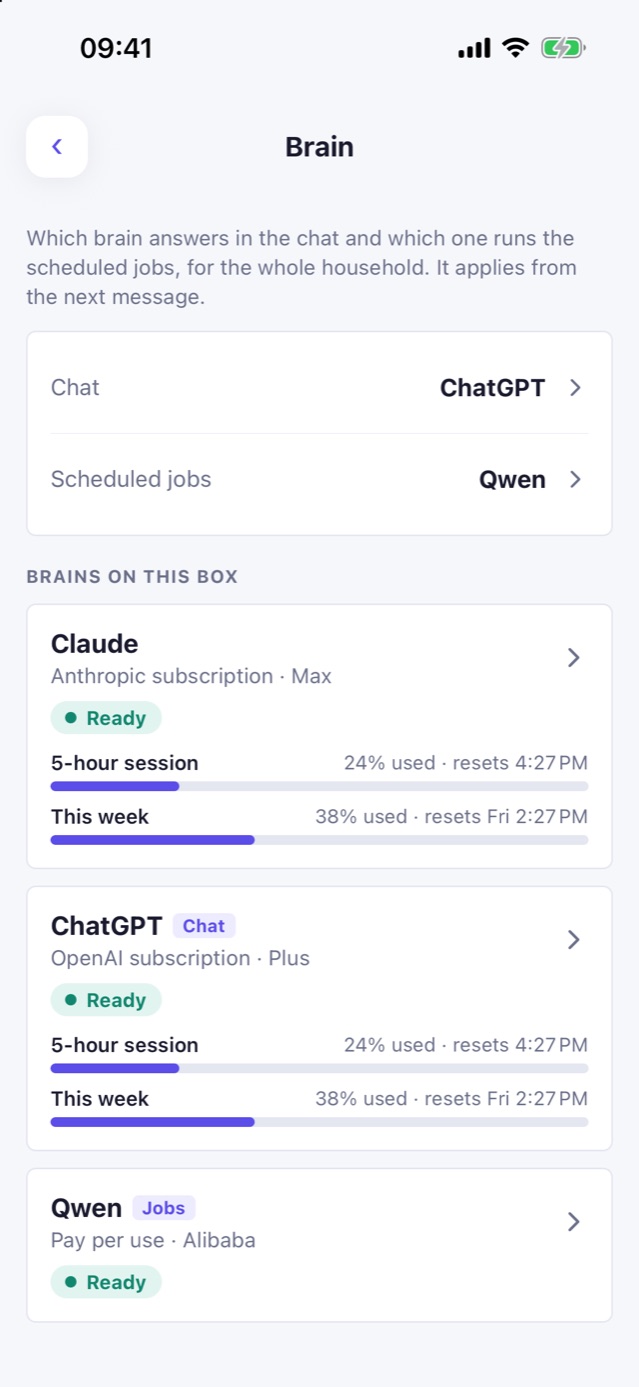
Me, Brains. Sign in with Claude or ChatGPT, or configure an API provider. Choose a brain for chat and scheduled jobs, with sign-in status and supported usage limits.
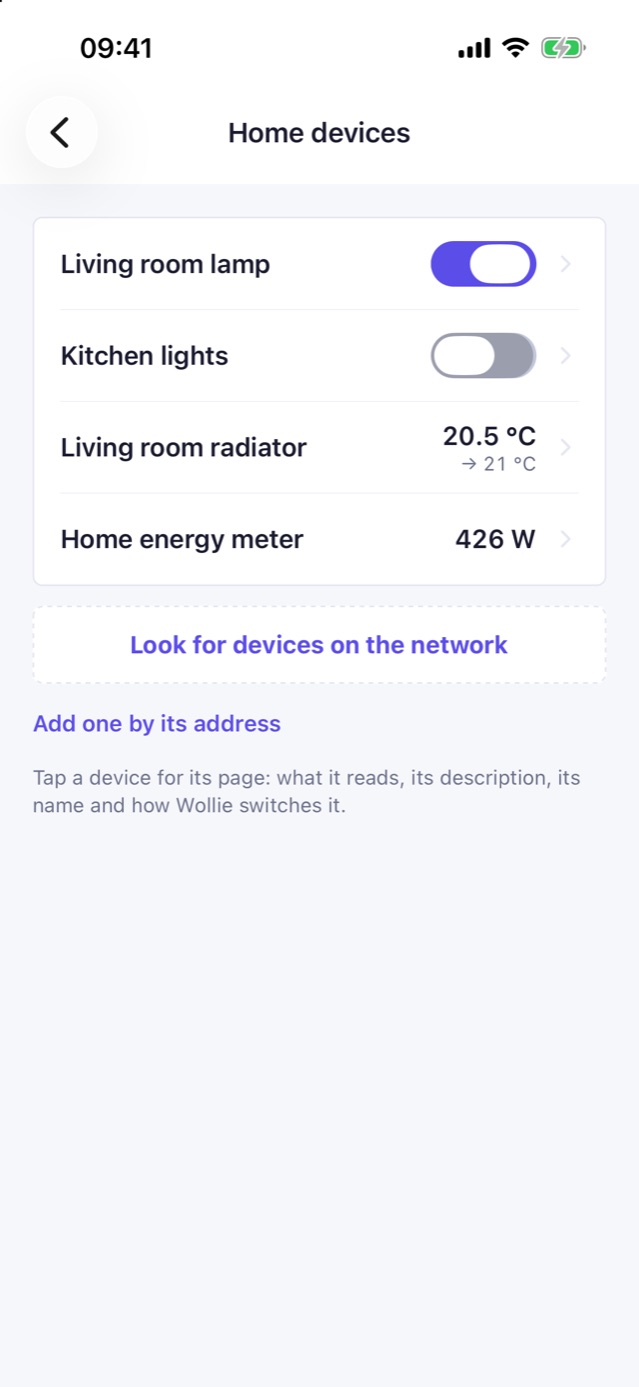
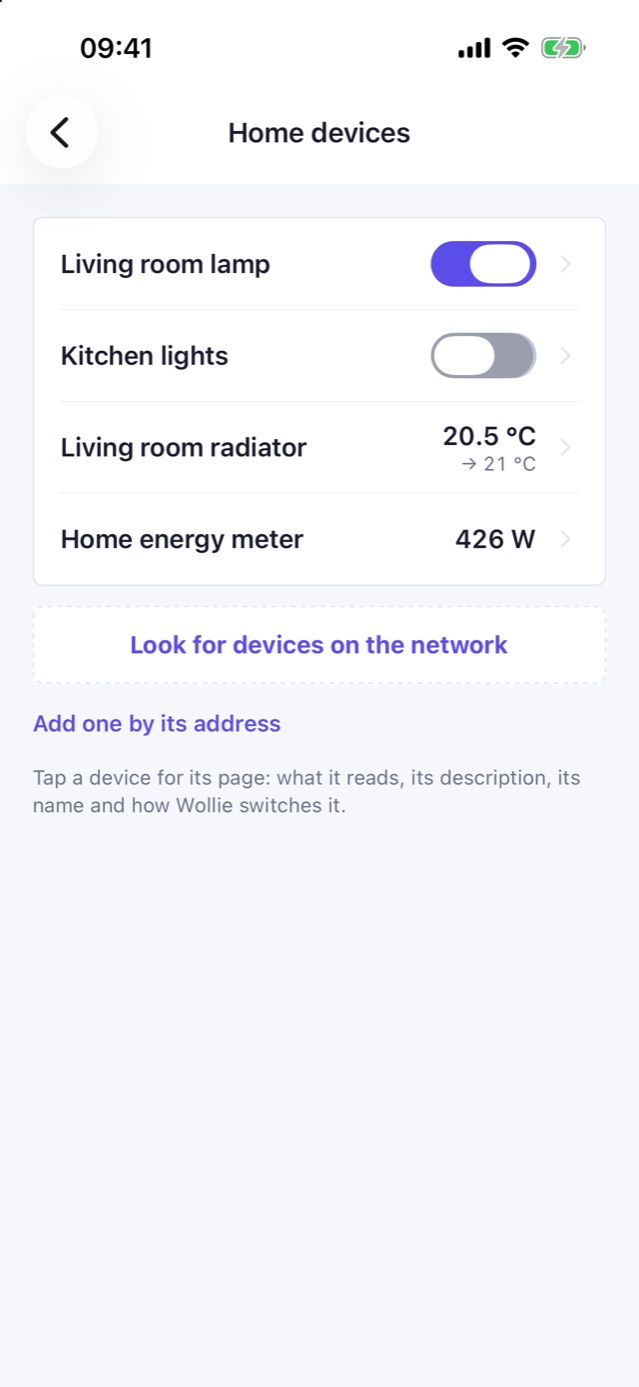
Me, Home devices. Updated readings and switches in the list; tap a device for all readings, manual controls, name and description. Protected devices ask for confirmation when operated from the app too.
Photos, scans, PDFs, Word, OpenDocument and RTF use the selected brain for reading. Fixed scan reading and the creation of summaries for archived documents.
Chat replies keep the final answer without repeating the text shown while Wollie is working. Accented letters are preserved.
What to try
Me, Brains. Check the available brains and the choices for chat and jobs.
Me, Home devices. Open a device and check its readings and controls.
Send a scan, ask Wollie to read and keep it, then find it in Documents with the date printed on the paper.
The box
Install box update 0.7.1 from the app to use these new features. For a new box, start with image 0.7.0, then update from the app. Images older than 0.7.0 cannot update from the app.
Choose the brain from the Wollie app and control home devices directly. This is a software update for existing boxes, installed from the app without reflashing the SD card or removing household data.
Choose separate brains for chat and scheduled jobs; check sign-in status and usage. Simulator screenshots with demo data.Switch lights from the list and see temperatures and energy readings at a glance.Set a radiator’s target temperature from its page, with room temperature, valve opening and battery readings.
What's new
Brains from the app. Sign in with Claude or ChatGPT, or configure Qwen, DeepSeek, Kimi or another compatible API provider. Choose a brain for chat and another for scheduled jobs, or use the same for both. Sign-in status and supported usage limits are shown in the app.
Home devices. Live readings and switches in the list, with a detail page for all readings, manual controls, name and description. A device configured to ask before switching also asks when operated from the app.
Photos, scans, PDFs and office documents use the selected brain for reading. Archived document summaries use the brain selected for jobs. Readings stay separate from the chat's context.
Chat replies keep the final answer without repeating the text shown while Wollie is working. Accented letters are preserved.
The box installs the engine versions required by this release after restarting. The first installation can take a few minutes; leave the box powered and connected.
For a new box, start with image 0.7.0, then install this update from the app. Images older than 0.7.0 cannot update from the app. The new brain settings and manual device controls need app build 159 or later; older apps keep working.
Calendars and home devices are set up from the app now, several appointments become one confirmation, and you can edit an earlier message and carry on from there. Your box updates from the app too, and there is a new box image to start from, 0.7.0.
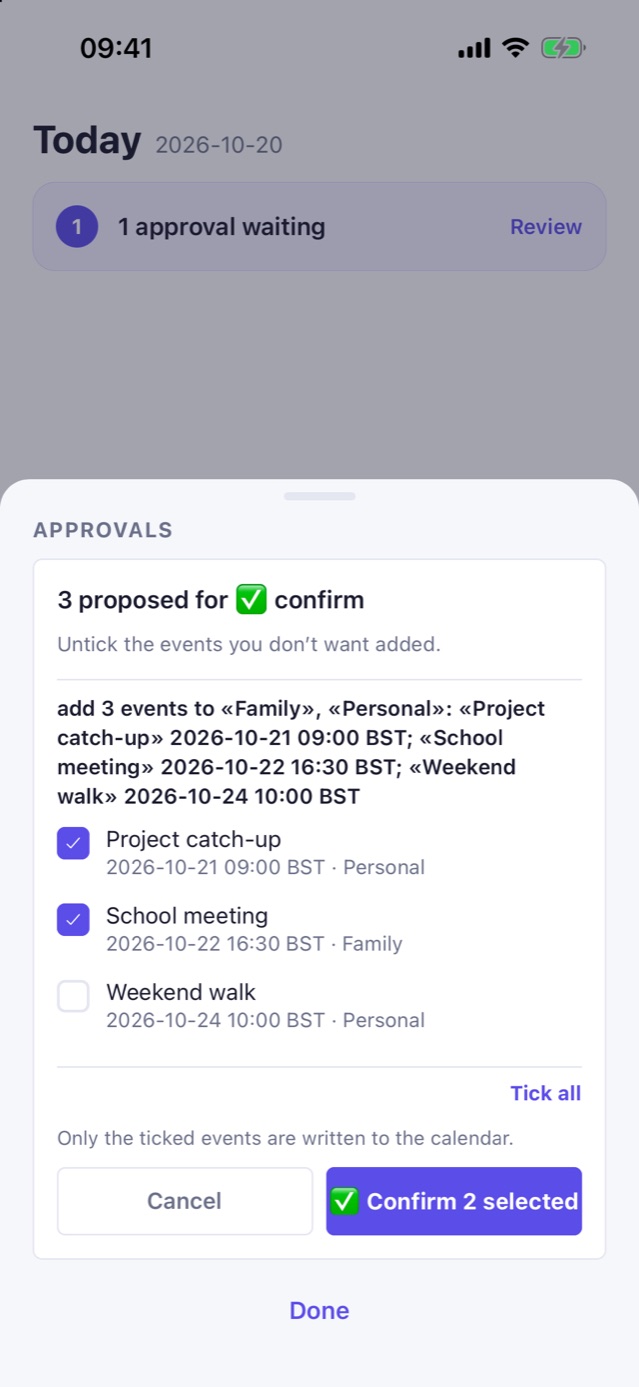
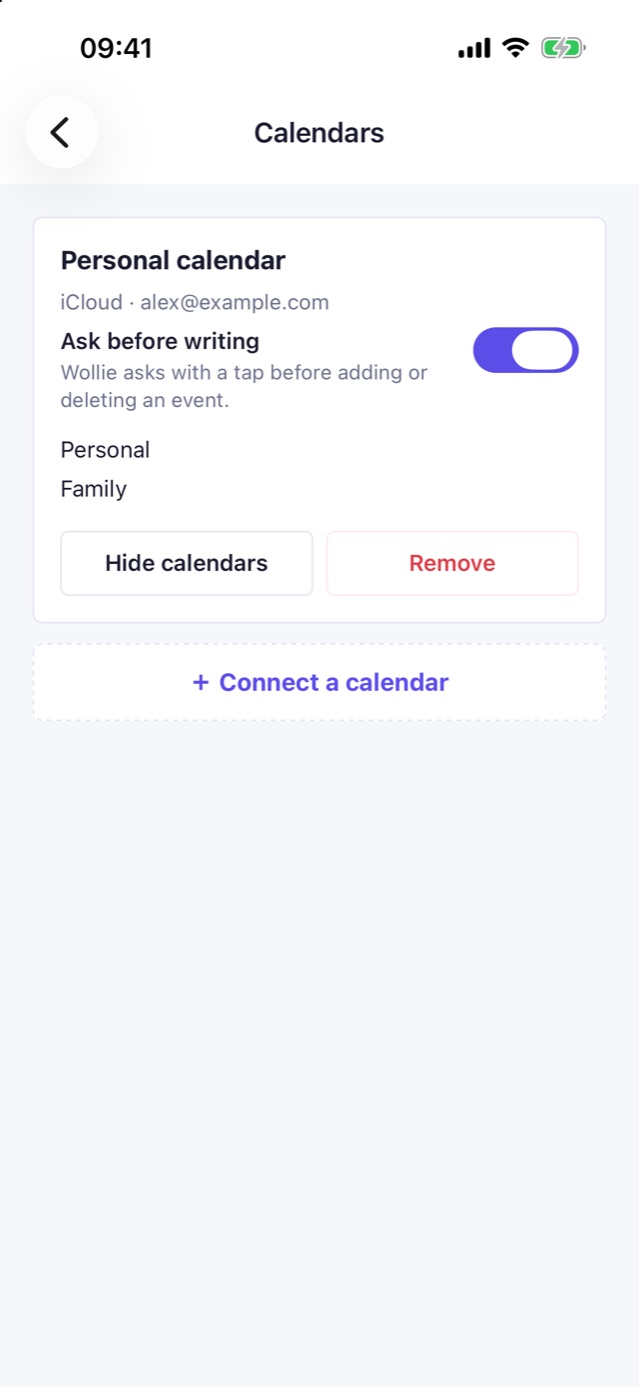
Connect iCloud or another CalDAV calendar, see its calendars, and decide whether Wollie asks before writing. Simulator screenshots with demo data.Review several appointments in one panel: untick the ones you do not want, then confirm only the selected events.
What's new
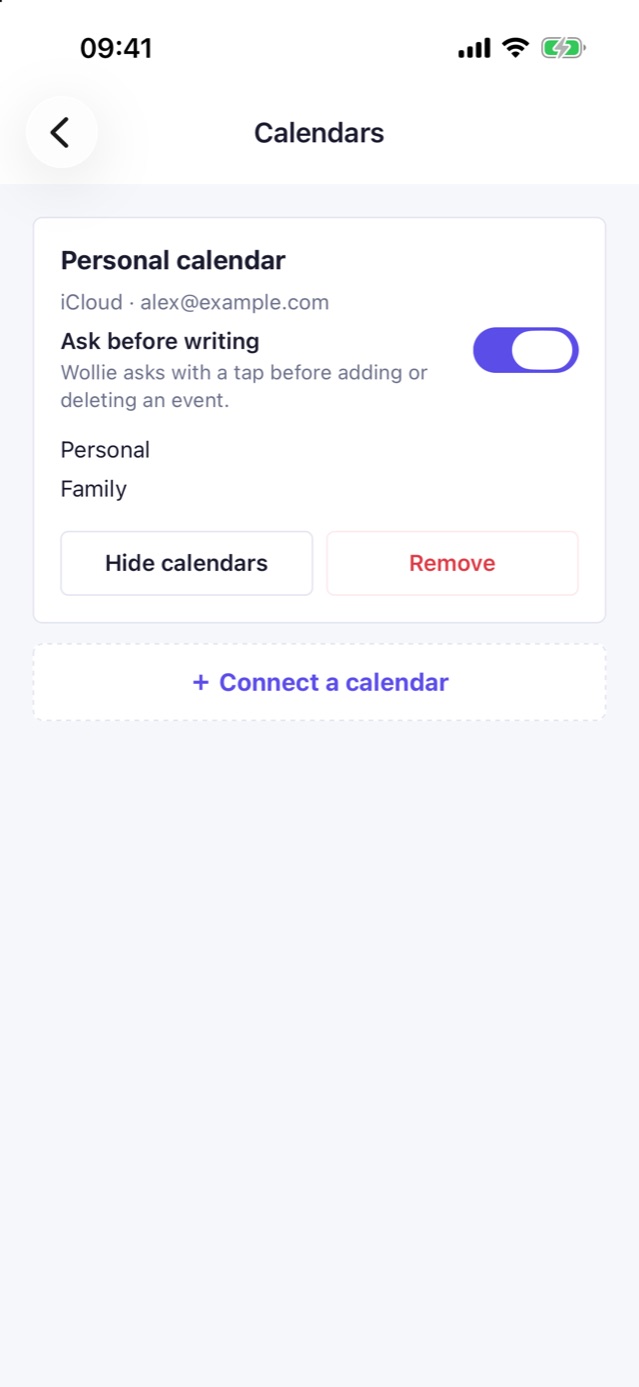
Me, Calendars. Connect iCloud or another calendar with an app-specific password (the box tries it before saving it), see what is inside, remove it. The box's owner decides whether Wollie asks before writing.
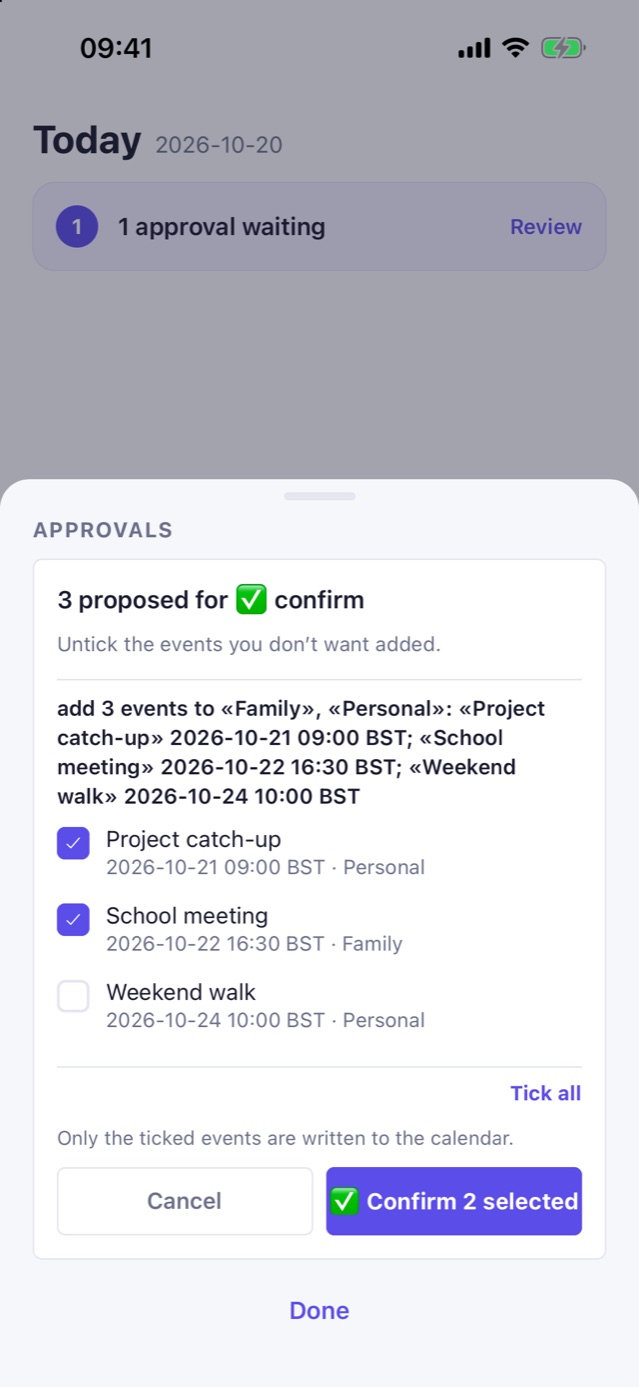
Several appointments at once (“add these four exam dates”) are one confirmation, with a tick per event: untick the ones you do not want.
Me, Home devices. Your Shelly plugs, switches and valves, whether they answer, look for new ones on the network, add, rename, remove. Wollie can put the question back before switching a device, never take it away.
Long press one of your messages: “Edit and continue from here”. What came after it disappears and Wollie picks up from the edited message; “Undo” brings everything back. “Reply” quotes a precise message, so Wollie knows what you are answering.
A job that could not run (a usage limit, no internet) leaves a message with “Try again”. A photo or file you sent in the chat that is about to be deleted leaves one with “Keep it”.
After you confirm something, the chat says “You confirmed” and what, instead of a technical line.
Word, OpenDocument and RTF files are read like PDFs.
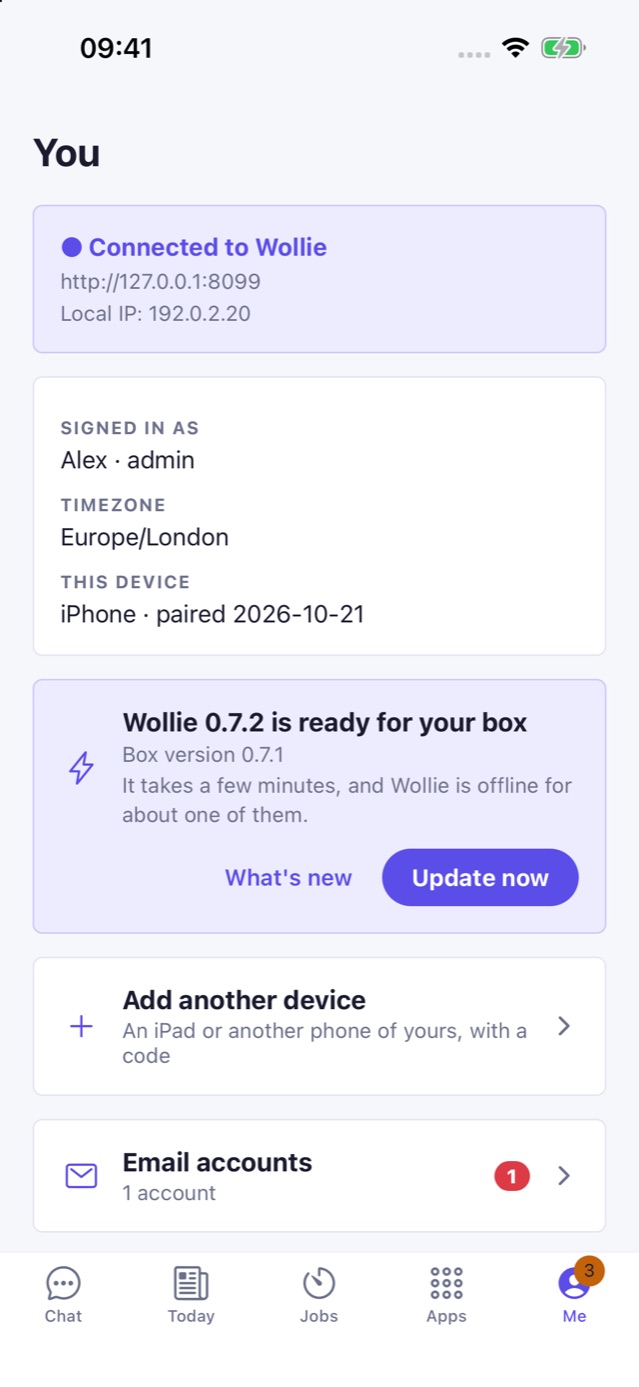
Me tab. “Box version”, with “Check now”; the box's owner updates it with one tap and sees each step. “Add another device” shows a code and a QR for your iPad or another phone.
A job's result or a reminder shows up in the chat while you look at it. The context line has “compact” on the left and “new conversation” on the right.
With the brain on a compatible endpoint, the jobs that search the web run on Claude when the box also has a Claude key.
What to try
Me, Calendars. Connect a calendar, then ask Wollie to add two appointments at once.
Long press a message of yours, “Edit and continue from here”, change it and send; then “Undo”.
Long press a reply of Wollie's, “Reply”, and ask about that one.
The box
Image 0.7.0 is the one to flash on a new box: from then on it updates from the app. A box flashed with an earlier image cannot update from the app.
A new box image, and the same version as an update for boxes already on 0.6.1: the box's owner sees it on the Me tab and taps Update now. Wollie is offline for about a minute while the box restarts, and your data stays where it is.
Connect iCloud or another CalDAV calendar, see its calendars, and decide whether Wollie asks before writing. Simulator screenshots with demo data.Review several appointments in one panel: untick the ones you do not want, then confirm only the selected events.
What's new
Calendars from the app (Me, Calendars): connect iCloud or another CalDAV calendar with an app-specific password, which the box tries before it saves it. The box's owner decides whether Wollie asks before writing.
Several appointments at once are one confirmation with a tick per event; only the ticked ones are written. Times are read on the household's clock, summer or winter time for that date.
Home devices from the app (Me, Home devices): your Shelly devices, whether they answer, a search of the network, add, rename, remove. The question before switching a device is the owner's: Wollie can put it back, never take it away.
Edit an earlier message and carry on from there, with Undo; reply to a specific message.
A job that could not run leaves a message with Try again; a file sent in the chat that is about to be deleted leaves one with Keep it.
Word, OpenDocument and RTF files are read like PDFs.
A box update shows each step as it happens; another device of yours is added with a code and a QR from the app.
Under the hood. The fixes from an adversarial review of all of the above.
Install image 0.7.0 on a new box: from then on it updates from the app. A box on the 0.6.0 image or earlier can't update in place. The new screens need the Wollie app build 156 or later; older apps keep working with this box.
The same app as build 150, published again so TestFlight's page shows its new description: Wollie starts on your iPhone, no Raspberry Pi needed. What's new is in build 150.
New installation: do not start from an image older than 0.7.0. Use image 0.7.0, then install updates from the Wollie app. Earlier images cannot update from the app.
The first update for the box that installs from the app: the box's owner sees it on the Me tab and taps Update now. Wollie is offline for about a minute while the box restarts, and your data stays where it is.
What's new
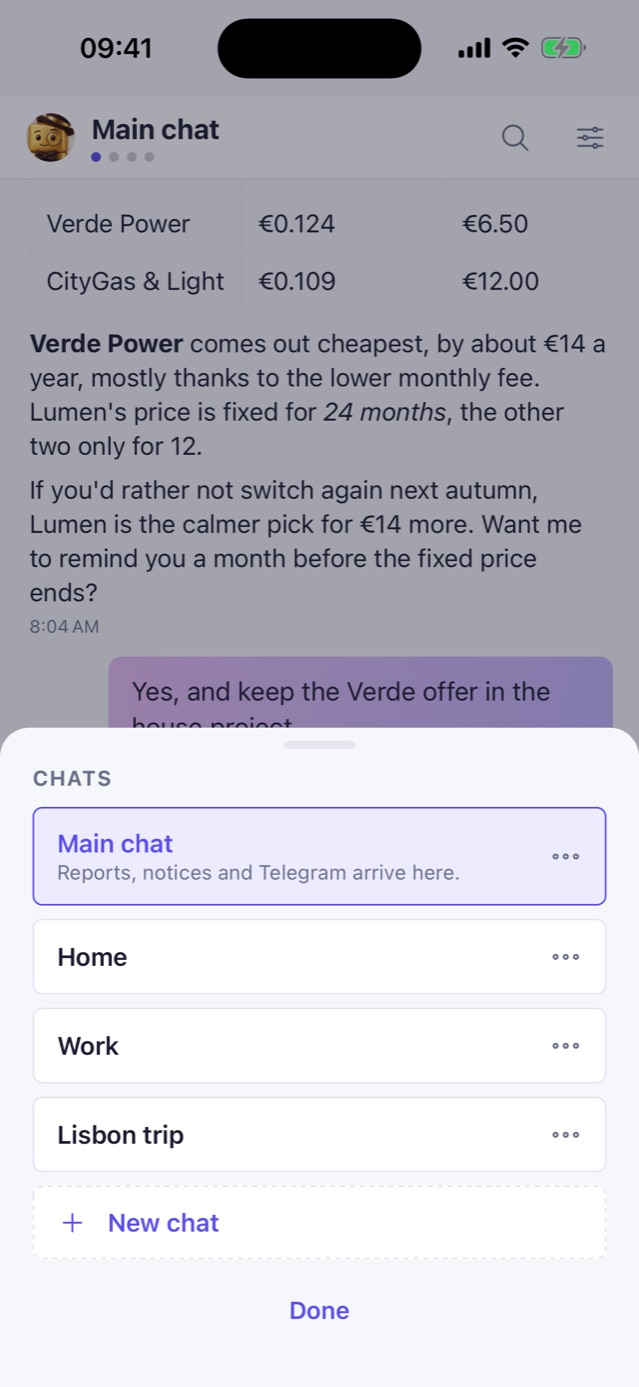
Several chats. Start a new one for each topic, and Wollie names it after your first message.
Scheduled jobs can search the web when their web switch is on, and open pages only on the sites you allow with a tap.
Verified senders. An attachment from a trusted sender downloads by itself only when the sender's own mail provider confirms who sent it. Anything else asks you first.
Box updates from the app. When a new version is ready, the owner installs it with one tap. If the new version doesn't start, the box goes back by itself to how it was before the update.
Under the hood. Dependencies pinned with hashes, a sturdier way to ship code to the box, and many fixes from code reviews.
Boxes on the 0.6.0 image or earlier can't install this update in place: they get these changes with the next image. The Update card needs the Wollie app build 152 or later; older apps keep working with this box.
Several chats, one per topic: swipe sideways to go from one to the next. And a reading mode for long answers.
One chat per topic: tap the name at the top for the list, or start a new one.Swipe sideways from one chat to the next; the dots say which one you are in.Reading mode: full screen, an easy typeface, your size, a white, sepia or night page.Scroll back through a chat and the search bar comes up.A scheduled job can search the web: Wollie turns it on when a job needs it, and so can you.
What's new
Chats. Tap “New chat” and you are in it straight away; Wollie names it from your first message, and you can rename it any time. An empty new chat you have not written in is reopened instead of making another.
Swipe sideways to go from one chat to the next; the dots under the name say which one you are in, and which one is answering or has a new reply. Rename, reorder and delete chats from the list (tap the name at the top).
Wollie has the same memories in every chat, but each chat only sees its own messages. Reports, notices and Telegram arrive in the main chat.
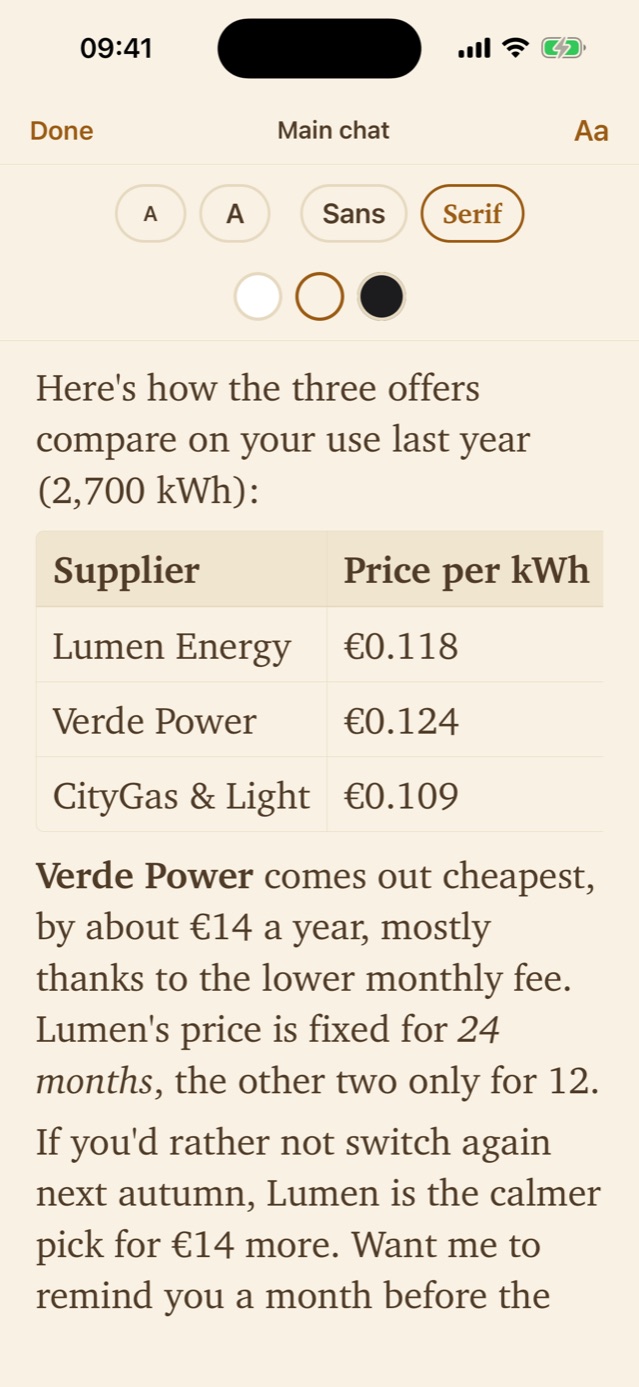
Reading mode. Long-press a message and choose “Reading mode” (or open it from Quick settings). Full screen, an easy typeface, seven sizes, white, sepia or night page.
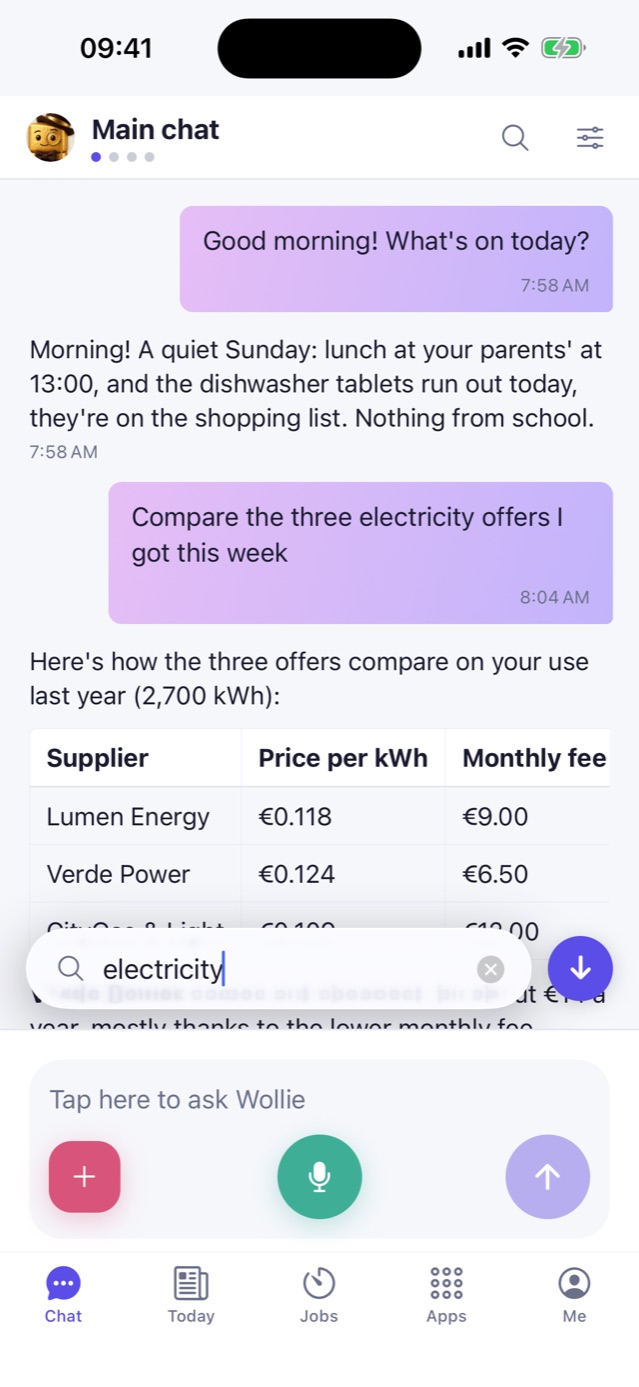
Scroll back through a chat and a search bar comes up at the bottom: type and press Search.
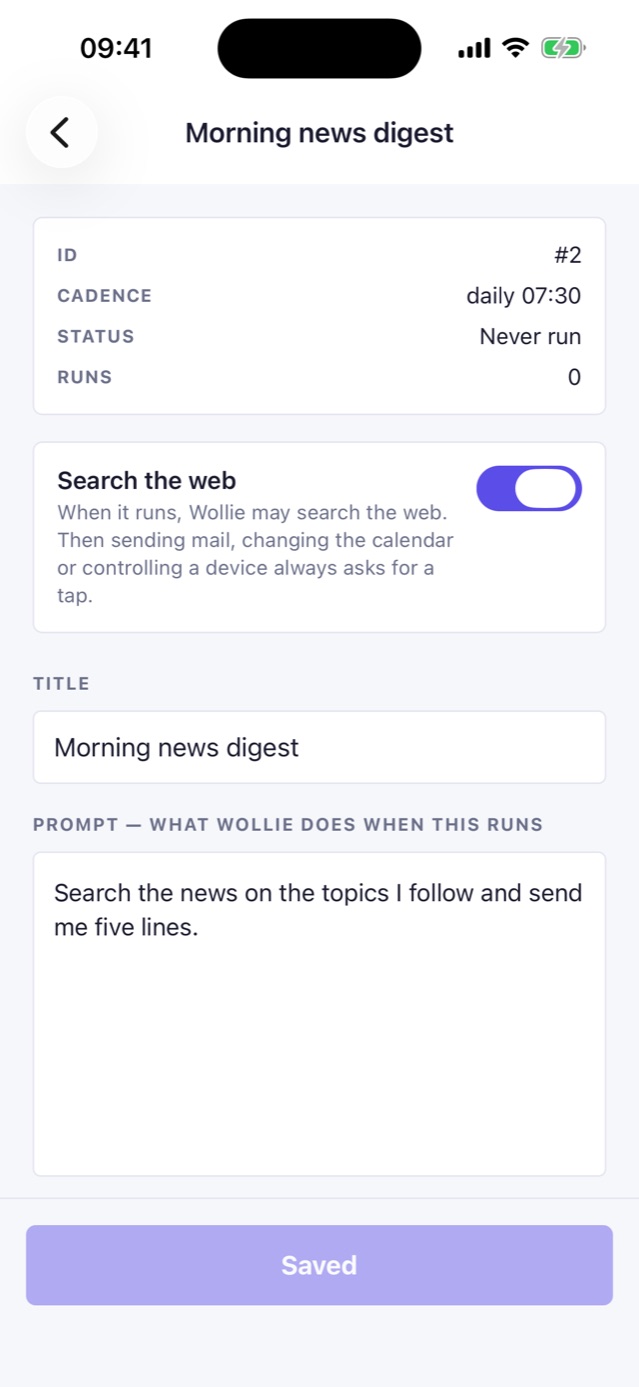
Scheduled jobs can search the web when their “Search the web” switch is on (on the job's page). Wollie turns it on when a job needs it; with the web on, sending mail, changing the calendar or controlling a device always asks for a tap.
The icons at the top sit on the right, and the cost is no longer there (it is in Settings).
“Tidy above” also takes a number of your own (“Another number…”).
What to try
Tap “Wollie” at the top, tap “New chat” and ask something: the chat gets a name with the answer.
Long-press an answer, choose “Reading mode”, then “Aa” to change size and page.
Scroll up in a chat, type a word in the bar at the bottom and press Search.
New installation: do not start from an image older than 0.7.0. Use image 0.7.0, then install updates from the Wollie app. Earlier images cannot update from the app.
The box image for Wollie 0.6.0. Flash it with the one-line command on the site, or with Raspberry Pi Imager and wollie-repo.json.
What's new
Reminders. Something you have to do, with fixed words, that rings by itself at its time, without asking the AI. Alerts before it's due ("the day before at 17:00", "2 hours before"), repeats, tags, and buttons on the notification to mark it done or snooze it. Today's are on the app's Today tab.
Portfolio. Accounts, made of wallets read from their chain or amounts you type for an exchange, with a balance chart in dollars, euros or bitcoin and how it splits. Ten chains now: Bitcoin, Ethereum, Polygon, BNB Chain, Base, Arbitrum, Optimism, Solana, Sui and IoTeX, and a 0x address is read on every one of those that uses it. Each coin has a Market section, and the box re-reads the wallets every hour.
Signed requests. At home the app talks to the box over plain HTTP. With app build 147 or later, every request is now signed with a key that stays on the phone, so someone on your Wi-Fi can no longer act as you. It does not hide the traffic: the privacy page says exactly what is and isn't covered.
Emails you can correct on the confirmation card. You can change the subject and text before the email goes. The recipients can't be changed there.
A general off switch for the box's owner, in the console and in the app. Off means no AI calls and no scheduled jobs; reminders still ring.
Scheduled jobs follow any calendar rule, on the household's clock, and a run missed while the box was off is made up.
The brain can be Claude or, to experiment, an endpoint of your own that speaks the same API.
The box's Claude command-line tool sends no telemetry, error reports or update checks.
A box you already have: there is no in-place update yet, and flashing this image starts a box from scratch. If your box is in use, it is fine to leave it on its version for now. Phones on app builds before 147 keep working; once a phone has opened 147, don't go back to an older build, or it will need pairing again.
New installation: do not start from an image older than 0.7.0. Use image 0.7.0, then install updates from the Wollie app. Earlier images cannot update from the app.
The first box image under the name Wollie — before, it was called Ambrogio. Flash it with Raspberry Pi Imager or the one-line command on the site.